
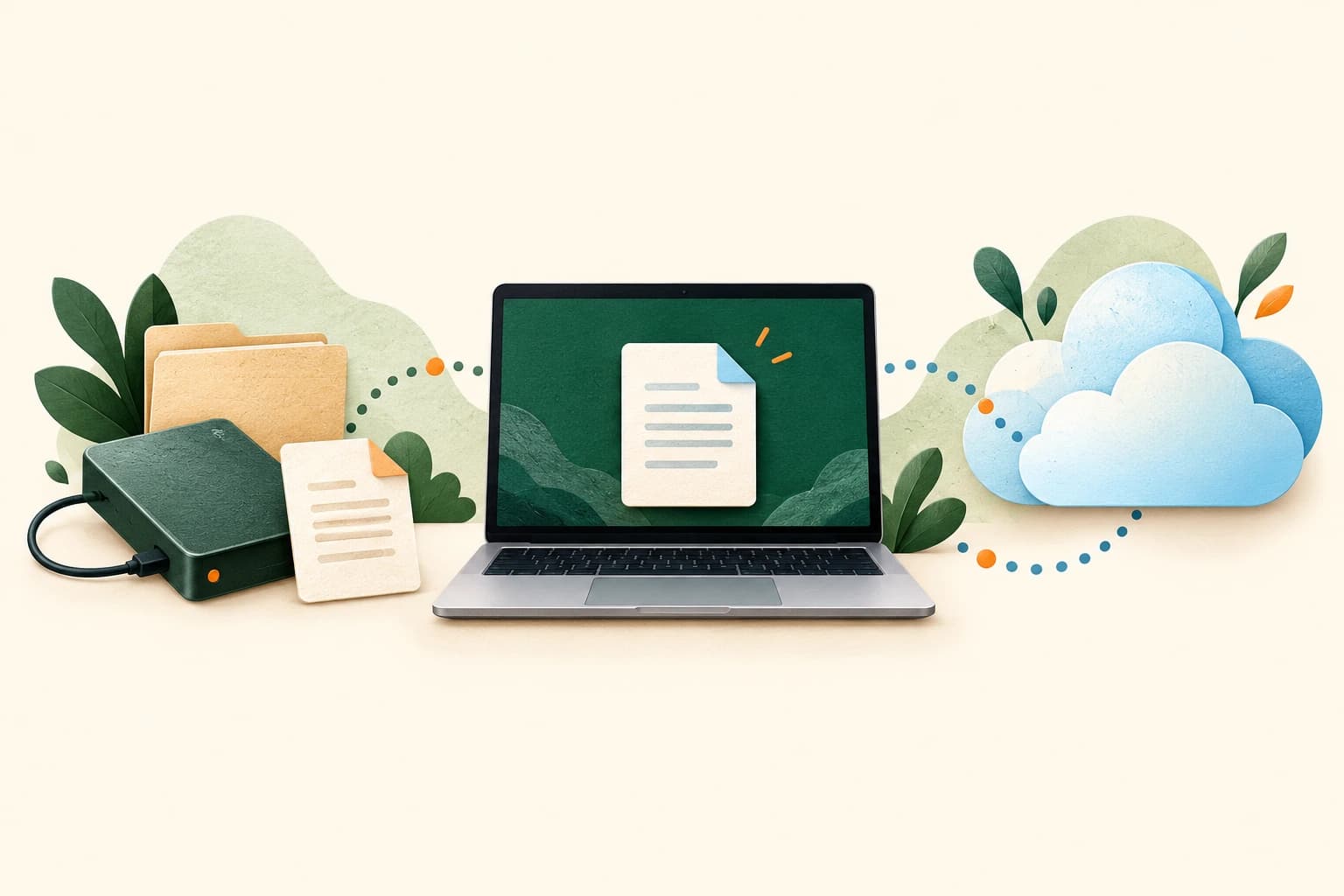
Cloud sync and backup answer different questions. Sync helps keep current files available across devices. A backup helps you recover files after something has gone wrong. Some services offer both synchronization and recovery features, so inspect what your account actually provides instead of relying on the product name.
The useful test is concrete: if a file disappears or becomes unusable today, where would you retrieve a working copy from yesterday?
Why a synced folder is only part of the answer
Imagine editing a document on a laptop and then opening it on another device. Synchronization is doing its job when the newer changes appear there too. The same coordination can also carry a change you did not intend.
For example, Microsoft explains that deleting a synced, online-only OneDrive file removes it from the cloud and other devices. Its web recycle bin can provide a recovery route, subject to the service's retention rules. The lesson is to understand both the shared current state and the recovery options behind it. See Microsoft's guide to working with synced files.
That does not make sync a bad feature. It means the convenience of seeing the same file everywhere does not, on its own, prove that an earlier usable version will remain available when you need it.
Describe the recovery you need
Before choosing another app or buying storage, write down three situations you want to handle:
- A document was overwritten with the wrong content.
- A folder was deleted and the mistake went unnoticed.
- The computer holding your files is no longer available.
Now ask what your present setup would do in each case. A recycle bin might address one situation for a limited period. Version history might address another. A separate copy on another destination might help when the original device is gone.
Also check which files exist locally. Microsoft's explanation of OneDrive file-status icons notes that an online-only file is not downloaded just because it appears in File Explorer. If a backup is meant to cover cloud-hosted documents, confirm that its process actually includes their contents.
This is an inventory exercise, not a search for the most complicated setup. List the folders that would matter tomorrow: photographs, current work, personal records, creative projects, or anything else you could not easily recreate.
Use an existing recovery tool deliberately
Windows and macOS have built-in options worth understanding before adding another service. Their coverage and setup differ; verify the folders and destination rather than assuming that turning on a switch includes everything.
On Windows: File History
File History saves versions of personal files to an external drive or a network destination. Microsoft documents setup through the Control Panel's system and security area, where you select a destination and enable the feature.
Its coverage is based on libraries, including the standard personal libraries and any others you configure. Check important folders that sit elsewhere. To recover an earlier file, use the available previous versions; when testing, choose the option to restore to a different location so the current copy is preserved.
After setup, confirm that a new backup has actually completed. The existence of a configured destination is only the beginning of the check.
On a Mac: Time Machine
Time Machine can keep backups on an external or supported network destination. Set up a backup disk in its settings and check that your important folders are included.
Apple also distinguishes local snapshots from backups stored elsewhere: a snapshot on the internal disk cannot supply a separate physical destination if that disk is lost. Check both what is being saved and where it lives.
Whichever tool you use, inspect its latest completed backup after configuration changes. A recovery plan should be observable, not merely something you remember enabling once.
 A backup becomes useful when you can find and open the recovered file. AI-generated illustration.
Run a small restore test
Use an expendable test document instead of experimenting on important work. The following exercise checks your own setup without requiring you to delete a real file:
- Create a small document in a folder you intend to protect. Put a distinctive sentence inside it.
- Let the backup finish, then record the date and destination of that completed run.
- Change the sentence in the working document and save it.
- Find the earlier copy through your recovery tool. Recover it to a separate test folder or use its safe preview option.
- Open the recovered file and check that the original sentence is present.
The point is to discover the steps while you can think calmly. If you cannot locate the first version, investigate now: was the folder included, did the job finish, and are you looking at the right destination?
Do not infer that this one test proves every file or failure scenario is covered. It verifies a specific path: a selected document, in a selected folder, from a completed backup. Repeat it for another important file type if your work depends on several.
Leave instructions for your future self
Write a short recovery note somewhere you can reach without the original computer. Include the destination, the tool used, the folders included, and the date of your last successful restore test. Store any recovery secrets securely; the note itself does not need to expose them.
Then ask one final question: would a problem affecting the working files also affect every copy you are relying on? If so, consider a more independent destination or another layer of recovery. The right arrangement depends on what you are trying to preserve and how much loss you can tolerate.
This connects to a broader principle in Software should make leaving boring: useful technology should give you a workable route back to your own material. Start with a folder you care about, identify the recovery copy, and prove that you can open it.
Prepared with AI assistance and checked against the linked vendor documentation. Illustrations explain the concepts; they do not depict actual software screens.


Loading the conversation…